Create
Photo to doodle
Upload a photo. Choose a drawing style. Make it your own.
Redraw my photo
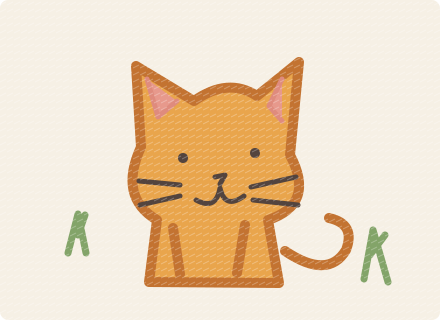
AI Halloween photo generator
Eight Halloween looks, from velvet vampires and black cats to dark angels and ghost brides. Bring your own face.
Open tool · AI Halloween photo generator
AI Halloween video generator
Eight Halloween looks, one photo and five seconds of motion. Try vampires, black cats, dark angels or ghost brides.
Open tool · AI Halloween video generator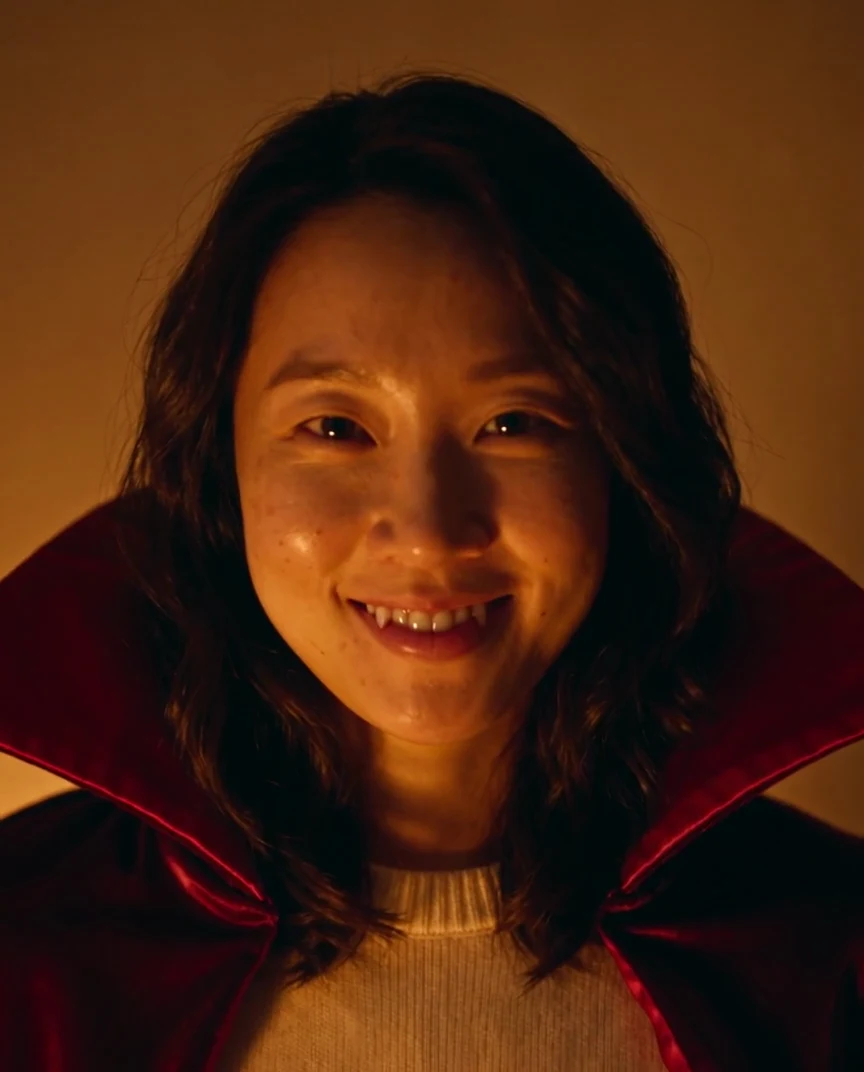
Bald filter online
Preview a clean-shaven head or subtle stubble from your selfie. Check the credit price before generating.
Open tool · Bald filter online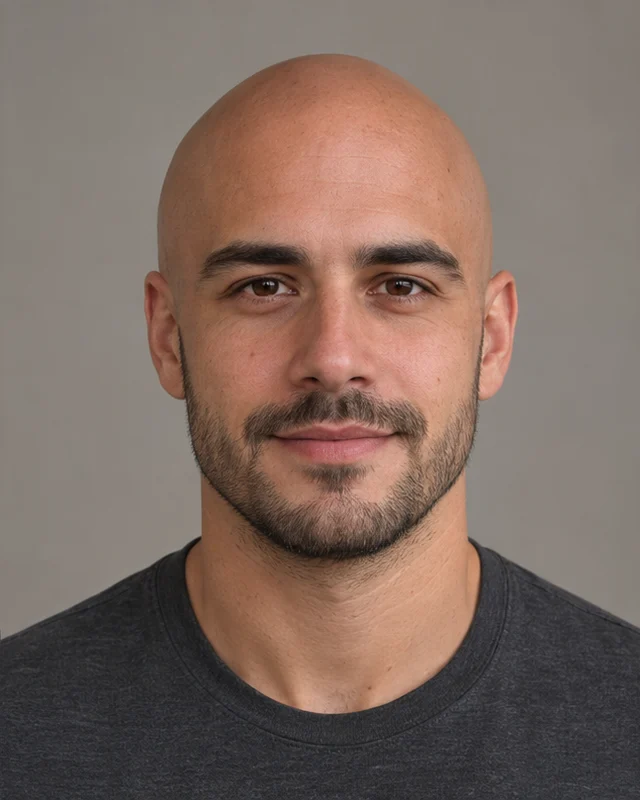
AI photo recreation
Recreate a photo with AI while aiming to keep its subject and composition. Choose a faithful rendition or soft natural light, then review the credit price.
Open tool · AI photo recreation
Flower Bouquet of Me
Turn one portrait into a vertical paper bouquet filled with your face or your pet’s.
Open tool · Flower Bouquet of Me
AI Video Recreation
Turn photos of people or pets into dance, transformation and duet videos. Choose a scene, upload the required photos, and review the duration and credits.
Open tool · AI Video Recreation
Shan Shen Bu Dance Generator
Turn one full-body photo into a 10-second Shan Shen Bu dance video. Keep your background, get scene music automatically, and watch the demo first.
Open tool · Shan Shen Bu Dance GeneratorBoxing Cat GIF Maker
Turn a photo of your cat into a 4-second boxing GIF. Download the loop or grab the MP4 to share on WhatsApp.
Open tool · Boxing Cat GIF MakerChiikawa Dancing Nokia
Turn one photo of yourself or your pet into a round 2D chibi dancing beside a ringing old phone. Create a 10-second vertical video with ringtone audio.
Open tool · Chiikawa Dancing NokiaFlamingo Float AI video generator
Make your own Flamingo Float AI video from one photo. Recreate the Thank You Bro pool rescue as a 12-second vertical MP4 with synchronized sound.
Open tool · Flamingo Float AI video generatorPermission to Cry Sir
Turn one portrait into a 10-second vertical reaction: a salute, a spoken request and a single tear.
Open tool · Permission to Cry SirI Love The Smiths
Cast two people in a 15-second elevator encounter. The listener wears headphones and stays; the speaker starts the conversation and walks out.
Open tool · I Love The SmithsAngel of My Dreams
One photo. White angel wings. Create a 10-second vertical reveal with yourself or your pet.
Open tool · Angel of My DreamsSomebody That I Used to Know
Two photos, one painted-wall duet. Give each person or pet a role in a 10-second landscape video.
Open tool · Somebody That I Used to KnowAI professional headshot
Create a professional profile from your photo. Four looks, two portrait ratios.
Create my headshot
AI graduation photo
Celebrate your milestone with a graduation portrait. Four looks, from campus to studio.
Create my graduation photo
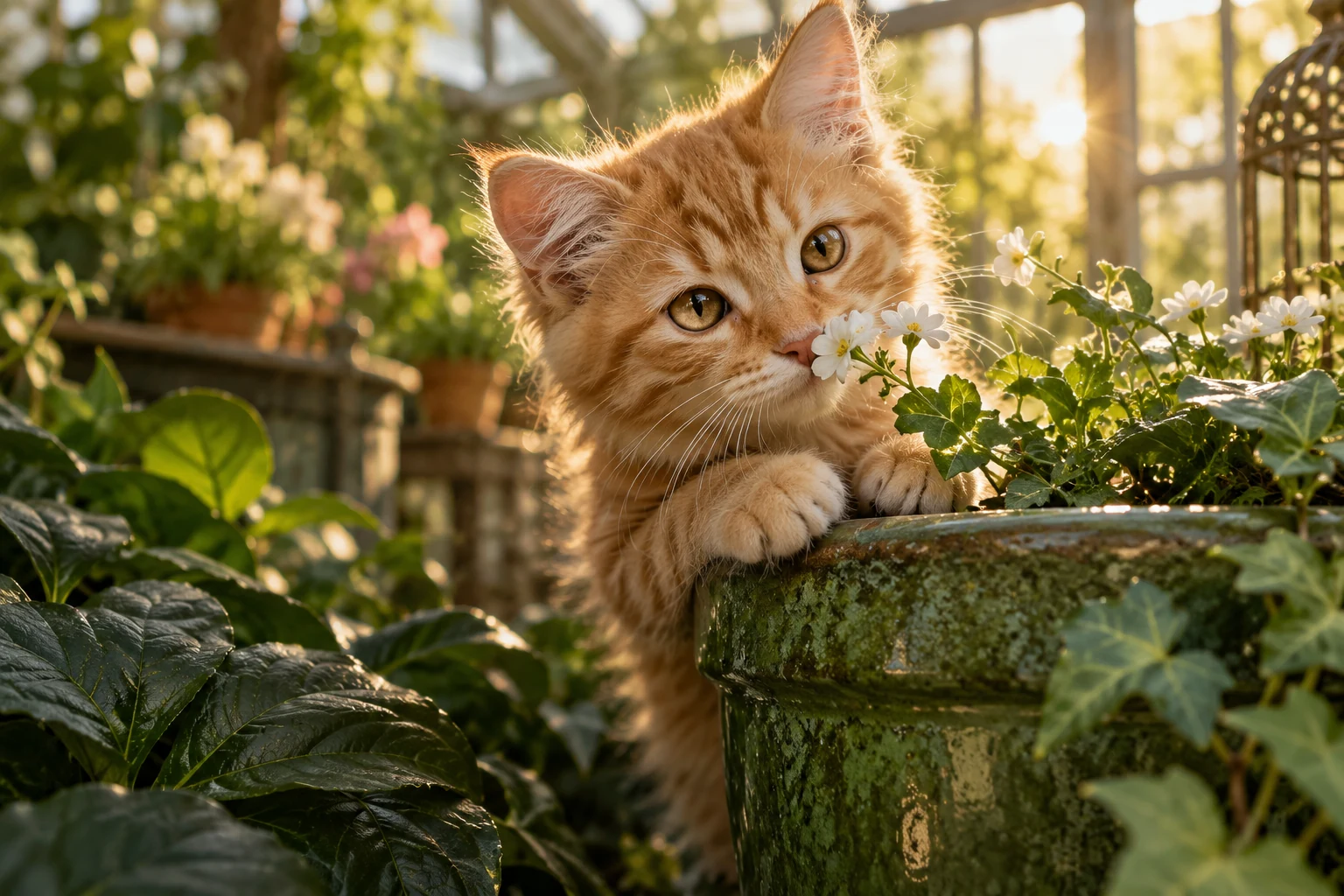
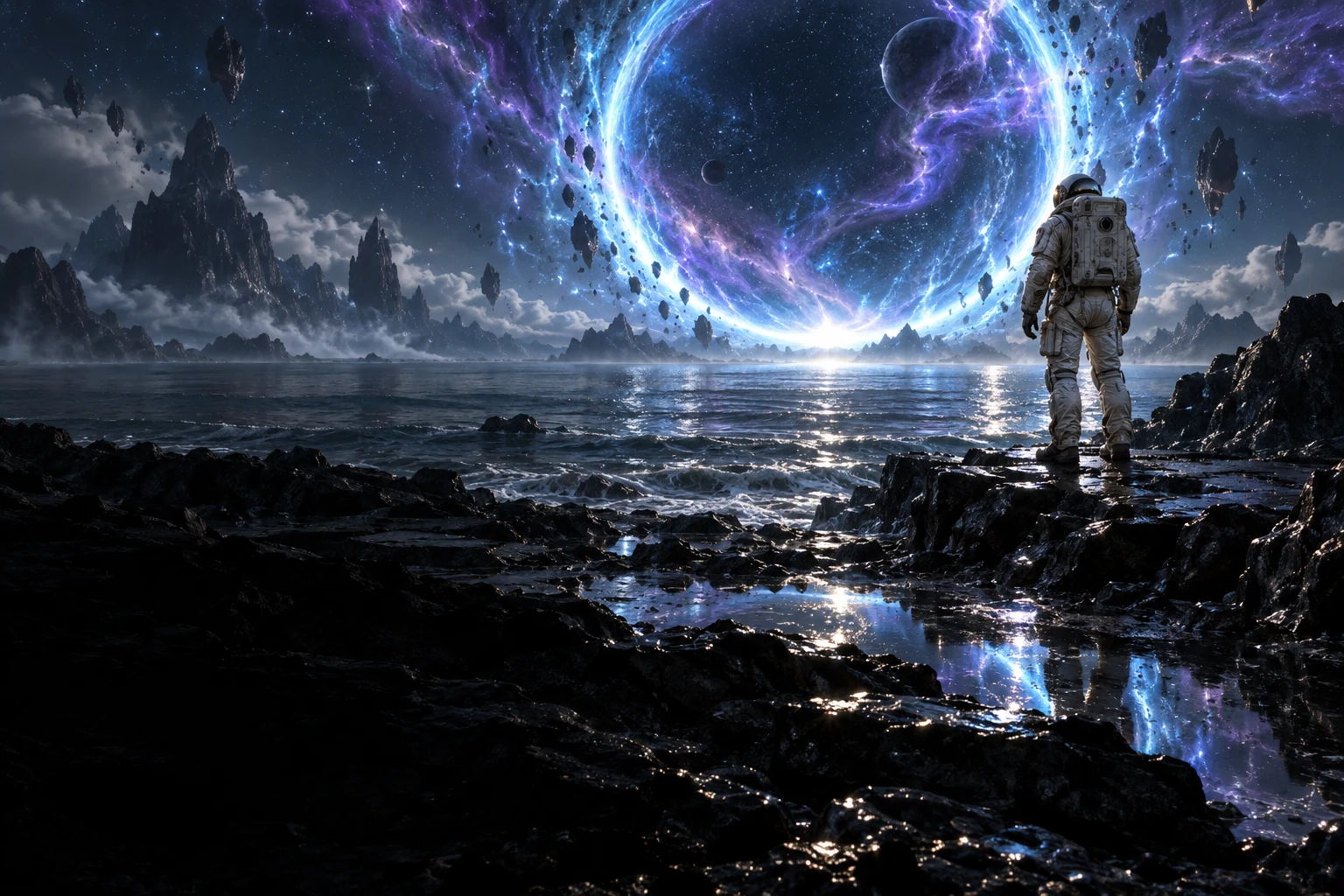
AI image & video generator
Big ideas deserve more than a blank page.
Bring yours to life with AI images and videos, all in one creative space.
An idea is all it takes.
From still moments to moving stories.
Find the right tool for whatever comes next.
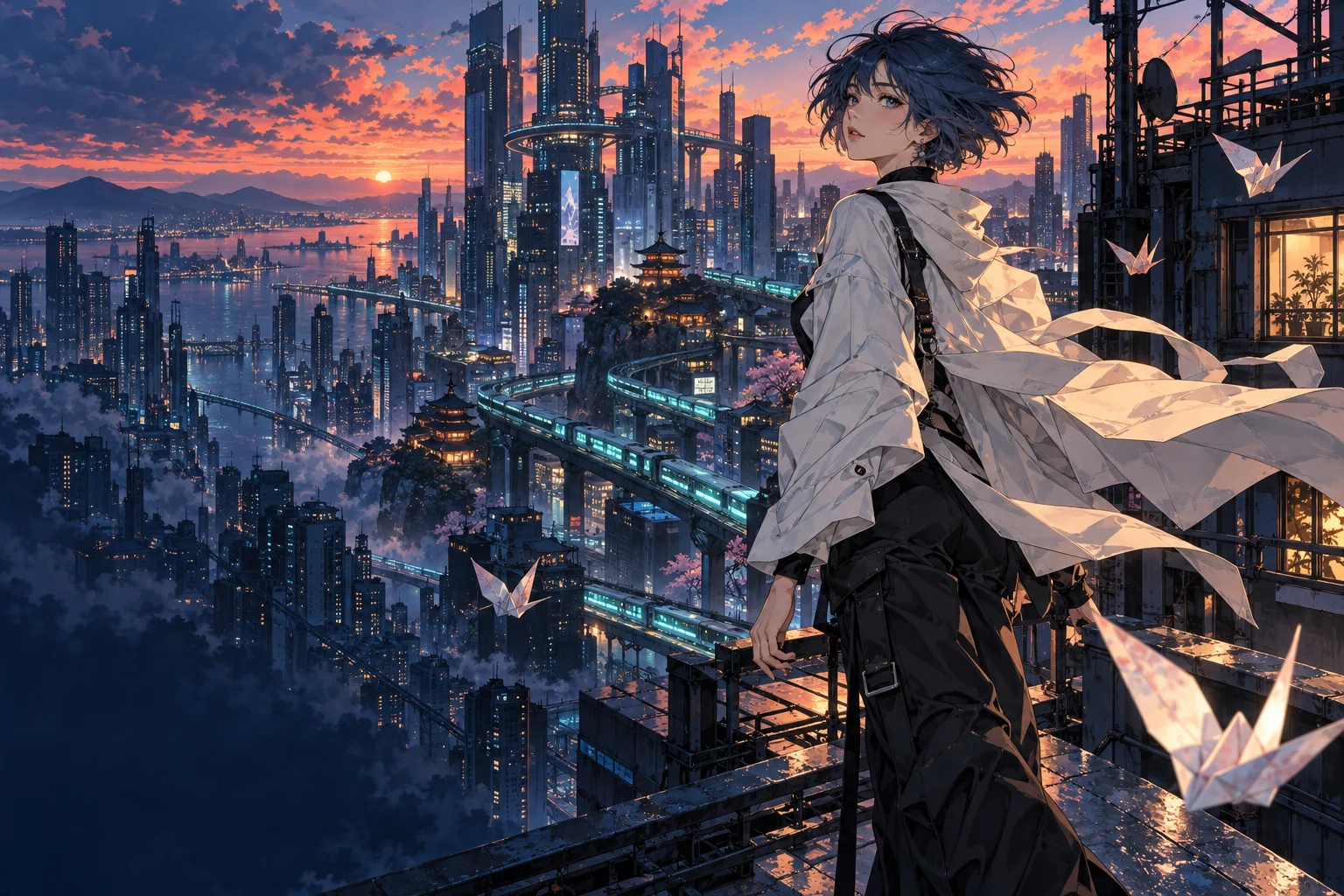
Think it.
See it.
Portraits, products, places, and everything in between.
Give your imagination a little room to play.
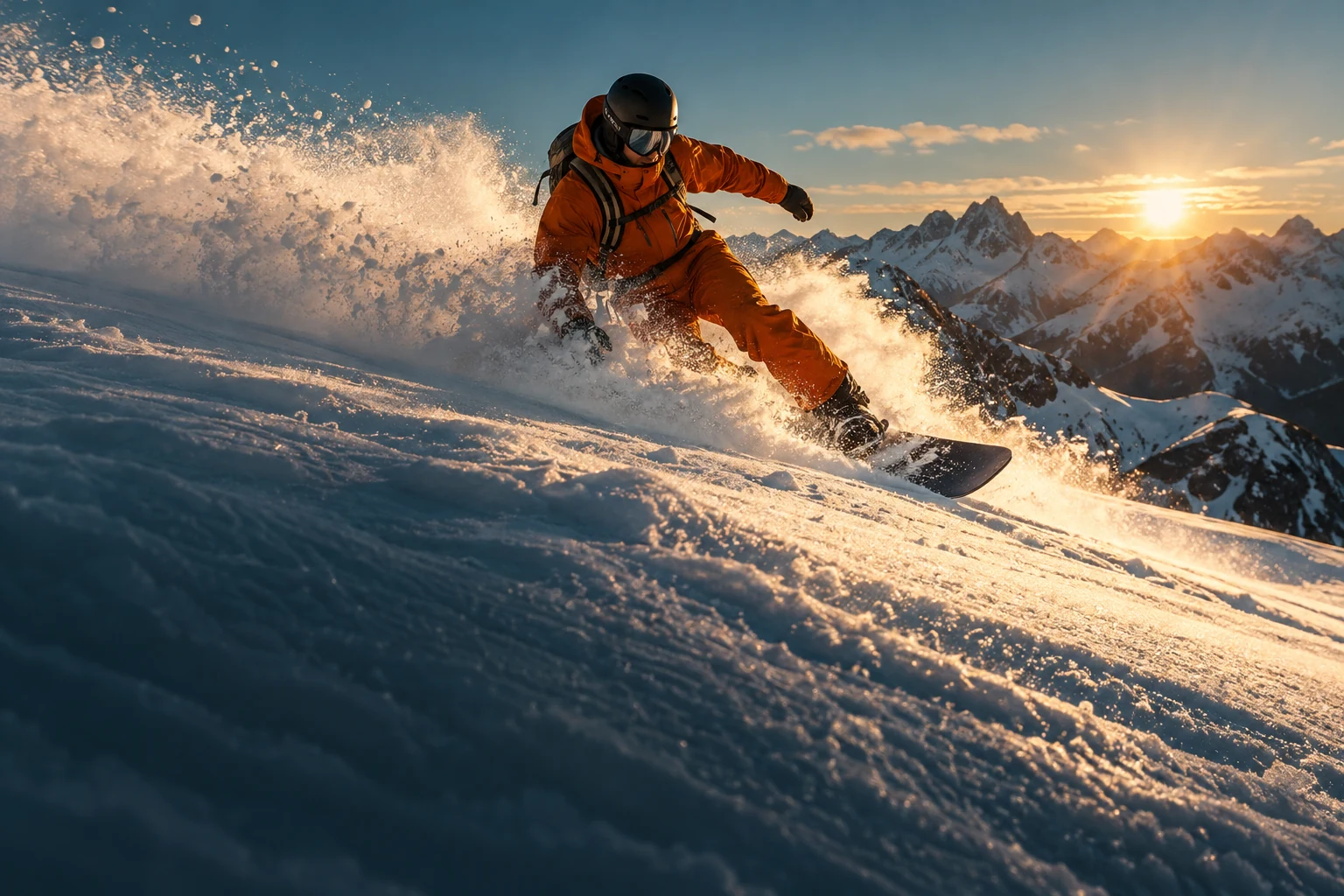
A moment.
A whole story.
Set the scene. Find the movement. Make it yours.
Create with prompts, references, and keyframes.
Your favorites, together.
Switch creative engines without switching your creative space.


mifanai is an independent product. Model names identify available integrations, not provider endorsement. Availability is shown in the workspace.
A spark for your next idea.
Good questions.
Simple answers.
When does a share become public?
Public sharing requires manual review. Changes must be reviewed again before becoming public.
Are my assets public by default?
No. Uploading or generating media keeps it private. To publish an image, video, or audio file, open Share in its Assets menu, review the notice and preview, then explicitly confirm. Canvas link sharing is separate.
What becomes public when I share a work?
The work, public title, display name, saved generation prompt, and listed reference images, videos, and audio become visible on /home and the detail page, including to visitors who are not signed in. Uploaded files have no generation prompt. Account email, credit records, and unrelated assets are not included.
Can I stop sharing?
Yes. Open Share again in the asset menu and choose Stop sharing. Deleting the work or any listed reference also removes the share from public display. Your other private assets are unaffected. Copies already saved by others cannot be recalled.
Can others reuse a shared work?
Sharing lets others view the work, prompt, and references; it does not grant them a reuse license or transfer your rights. Publish only content you have permission to disclose. To report a rights or privacy concern, use Report this work on the detail page or contact [email protected].
What is mifanai?
mifanai brings AI image creation, image editing, video generation, and a connected canvas into one workspace. Explore available models and keep your assets and finished creations organized by project.
How do I get started?
Choose a creation entry at the top of this page and sign in. Select an available model, add a prompt or the required reference media, then check the settings and credit quote before submitting. Inspiration cards can also give you a starting prompt.
Which image tools can I use?
Create images from prompts, edit an existing image, separate it into layers, or remove its background. Find these tools under AI Image. Available models and input requirements vary by tool; check the studio before submitting.
How do I remove an image background?
Open Remove Background under AI Image and upload one image. No prompt is needed. After the task succeeds, download a transparent PNG that keeps the subject; the studio shows the supported file types and size limits.
What inputs can I use to create videos?
Depending on the selected model, you can start from text, an image, first and last frames, or supported reference media. Each model has its own input, duration, and resolution limits. Use the options shown in the studio for that model.
How do I choose a model?
Start with the task you want to complete, then compare the available models and their supported inputs. Check resolution, duration, output count, and the credit quote. Changing a model can change the available settings and price.
What can I do in the canvas?
Bring text, images, videos, and other media into a visual workspace. Connect nodes to organize references and creation steps, then generate or edit from supported nodes. Each generation step still depends on its available models and inputs.
Can I use my own images and videos?
Yes. Models that support reference media let you upload images, videos, or audio. The studio shows the supported inputs for your selected model, including first and last frames where available.
Where can I find my creations?
Choose or create a project above the studio prompt. Assets groups your image and video runs by project; unassigned runs go into the default category. You can move existing runs between projects and download finished results.
How do I download a finished result?
Open a completed result in Assets or the canvas and use Download. Background removal produces a transparent PNG. Other download formats depend on the result; wait until generation has finished before downloading.
How does generation pricing work?
Image and video generation use credits. The cost depends on the model and settings, such as resolution, duration, and output count. The studio shows the required credits before you submit; changing the settings updates the quote.
Are credits returned if generation fails?
Credits are deducted when you submit. If the task is confirmed to have failed without delivering a result, the credits are returned. For partially completed tasks, the undelivered portion is returned. Tasks still processing or awaiting confirmation keep their credits until the outcome is known.
Where can I see my remaining credits?
After signing in, you can see your available credits at the top of the page. Open the account menu and choose Credit history to view spending, task status, and returned credits.
How can I contact support?
For help with creation tools, tasks, or credits, email our support team. Include your account email and the task ID or error message when available. [email protected]
Make room foryour next big idea.
One workspace. Your favorite models. Your own creative direction.